3.5 inch Pi TFT LCD Touchscreen(320*480)
sku RBP-CB0118 · categoríacategory displays
factura o tiquete electrónicoprice in USD
electronic invoice or receipt
quedan 22 left — envíos desde San José— ships from San José
cantidadquantity
- [✓] Envío desde San José, CR: por Correos de Costa Rica, o retiro en Centro Colón. Costo y plazo en el checkout.Ships from San José, CR: by Correos de Costa Rica, or pickup at Centro Colón. Cost and timing at checkout.
- [✓] Envío gratis con Correos en pedidos desde $200.00 antes de IVA.Free shipping by Correos on orders of $200.00 or more before VAT.
- [✓] Factura electrónica: pídala en el checkout con su cédula o la de su empresa.Electronic invoice: ask for it at checkout with your ID or your company's.
- [✓] PagoPayment: Tarjeta de crédito o débito (Tilopay)Credit or debit card (Tilopay) · Compra-Click (enlace de pago por correo)Compra-Click (payment link by email) · Pagar al retirar en Centro Colón (datáfono)Pay at pickup in Centro Colón (card terminal) · SINPE MóvilSINPE Móvil · Depósito o transferencia bancariaBank deposit or transfer.
- [✓] CuentaAccount: para comprar se inicia sesión.needed to check out. Crear cuentaCreate an account
- [✓] ¿Dudas?Questions? contacto y soportecontact and support
$ cat specs.txt
- tamaño de pantallascreen size
- 3.5 pulgadas3.5 inches
- resoluciónresolution
- 320*480 (píxeles)320*480 (pixels)
- tipo de lcdlcd type
- TFTTFT
- interfaz del lcdlcd interface
- SPISPI
- tipo de pantalla táctiltouchscreen type
- ResistivaResistive
- controlador táctiltouch controller
- XPT2046XPT2046
- colorescolors
- 6553665536
- retroiluminaciónbacklight
- LEDLED
- relación de aspectoaspect ratio
- 2:032:03
- alimentaciónpower supply
- 3.3V y 5V3.3V and 5V
- compatibilidadcompatibility
- Raspberry PI 3, Raspberry PI 4 (Raspbian)Raspberry PI 3, Raspberry PI 4 (Raspbian)
a agregar al carritoadd to cart← → fotosphotosg c ir al carritogo to cart
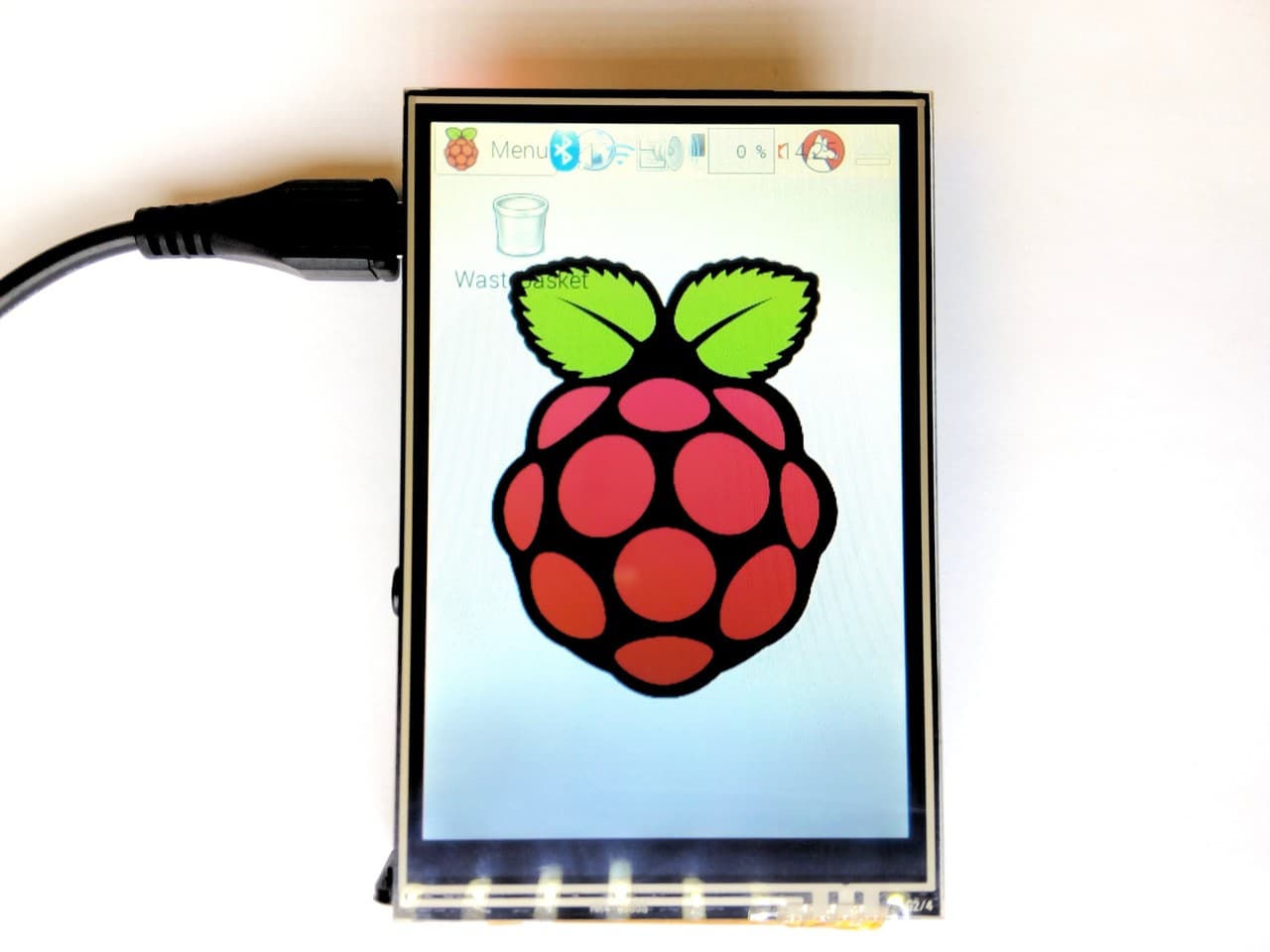
Este módulo de pantalla táctil TFT LCD de 3.5 pulgadas se conecta directamente a la Raspberry PI. La resolución es de 320x480. Esta pantalla ha sido probada con la versión más reciente de Raspbian. Las instrucciones de instalación se encuentran a continuación.
Especificaciones
|
Tipo de LCD |
TFT |
|
Interfaz del LCD |
SPI |
|
Tipo de pantalla táctil |
Resistiva |
|
Controlador de pantalla táctil |
XPT2046 |
|
Colores |
65536 |
|
Retroiluminación |
LED |
|
Resolución |
320*480 (píxeles) |
|
Relación de aspecto |
2:03 |
|
Consumo de energía |
Por definir |
|
Corriente de retroiluminación |
Por definir |
|
Temp. de operación (℃) |
Por definir |
Interfaz
|
N.º DE PIN |
SÍMBOLO |
DESCRIPCIÓN |
|
1, 17 |
3.3V |
Alimentación positiva (entrada de alimentación de 3.3V) |
|
2, 4 |
5V |
Alimentación positiva (entrada de alimentación de 5V) |
|
3, 5, 7, 8, 10, 12, 13, 15, 16 |
NC |
NC |
|
6, 9, 14, 20, 25 |
GND |
Tierra |
|
11 |
TP_IRQ |
Interrupción del panel táctil, nivel bajo mientras el panel táctil detecta un toque |
|
18 |
LCD_RS |
Selección de registro de instrucción/datos |
|
19 |
LCD_SI / TP_SI |
Entrada de datos SPI del LCD/panel táctil |
|
21 |
TP_SO |
Salida de datos SPI del panel táctil |
|
22 |
RST |
Reinicio |
|
23 |
LCD_SCK / TP_SCK |
Reloj SPI del LCD/panel táctil |
|
24 |
LCD_CS |
Selección de chip del LCD, activo en bajo |
|
26 |
TP_CS |
Selección de chip del panel táctil, activo en bajo |
Instrucciones de instalación de la pantalla táctil TFT de 3.5 pulgadas
Descripción general
Las instrucciones de referencia iban por buen camino, sin embargo no estaban completas.
Instrucciones de referencia: [https://www.raspberrypi.org/forums/viewtopic.php?f=63&t=178443]
Las siguientes instrucciones funcionaron para una Raspberry PI 3 con Raspbian instalado.
Supuestos: conocimientos básicos de navegación en la línea de comandos (cli), ssh habilitado, red habilitada, conexión a internet y la versión más reciente de Raspbian a mayo de 2017.
Pasos
Habilitar SPI
sudo raspi-config
Vaya a 5 Interfacing options y habilite SPI (P4 SPI)sudo reboot
Actualizar la Raspberry PI
sudo apt-get updatesudo apt-get upgradesudo reboot
Configurar el archivo config.txt para piscreen
sudo nano /boot/config.txt
Agregue esta línea al final del archivo:dtoverlay=piscreen,speed=16000000,rotate=270
Guarde y salga
Instalar fbi - visor de imágenes de framebuffer
sudo apt-get install fbisudo nano /usr/share/X11/xorg.conf.d/99-fbturbo.conf
CambieOption "fbdev" "/dev/fb0"
porOption "fbdev" "/dev/fb1"
Guarde y salga
Configurar el script de la pantalla táctil
sudo nano .config/lxsession/LXDE-pi/touchscreen.sh
Agregue las siguientes líneas al archivo touchscreen.sh
DISPLAY=:0 xinput --set-prop 'ADS7846 Touchscreen' 'Evdev Axes Swap' 0
DISPLAY=:0 xinput --set-prop 'ADS7846 Touchscreen' 'Evdev Axis Inversion' 0 1
Guarde y salga
Cambie los permisos del archivosudo chmod a+x .config/lxsession/LXDE-pi/touchscreen.sh
Ejecute el script al iniciosudo nano .config/lxsession/LXDE-pi/autostart
Inserte lo siguiente después de @pcmanfm --desktop --profile LXDE-pi pero antes de @xscreensaver -no-splash:@lxterminal -e .config/lxsession/LXDE-pi/touchscreen.sh
Guarde y salga
Instalar xinput
sudo apt-get install xinput
Instalar la configuración de evdev
sudo cp -rf /usr/share/X11/xorg.conf.d/10-evdev.conf /usr/share/X11/xorg.conf.d/45-evdev.conf
Reiniciar y probar
sudo reboot
Las siguientes instrucciones funcionaron para una Raspberry PI 4 con Raspbian instalado.
Supuestos: conocimientos básicos de navegación en la línea de comandos (cli), ssh habilitado, red habilitada, conexión a internet y la versión más reciente de Raspbian. Probado en noviembre de 202.
Pasos
Habilitar SPI
sudo raspi-config
Vaya a 5 Interfacing options y habilite SPI (P4 SPI)sudo reboot
Actualizar la Raspberry PI
sudo apt-get updatesudo apt-get upgradesudo reboot
Obtener el script de configuración
sudo rm -rf LCD-show
git clone https://github.com/goodtft/LCD-show.git
chmod -R 755 LCD-show
cd LCD-show/
sudo ./LCD35-show
Reiniciar y probar
sudo reboot
This 3.5 inch TFT LCD touchscreen module connects directly to the Raspberry PI. The resolution is 320x480. This display has been tested with the latest version of Raspbian. The installation instructions are below.
Specifications
|
LCD Type |
TFT |
|
LCD Interface |
SPI |
|
Touch Screen Type |
Resistive |
|
Touch Screen Controller |
XPT2046 |
|
Colors |
65536 |
|
Backlight |
LED |
|
Resolution |
320*480 (Pixel) |
|
Aspect Ratio |
2:03 |
|
Power Consumption |
TBD |
|
Backlight Current |
TBD |
|
Operating Temp. (℃) |
TBD |
Interface
|
PIN NO. |
SYMBOL |
DESCRIPTION |
|
1, 17 |
3.3V |
Power positive (3.3V power input) |
|
2, 4 |
5V |
Power positive (5V power input) |
|
3, 5, 7, 8, 10, 12, 13, 15, 16 |
NC |
NC |
|
6, 9, 14, 20, 25 |
GND |
Ground |
|
11 |
TP_IRQ |
Touch Panel interrupt, low level while the Touch Panel detects touching |
|
18 |
LCD_RS |
Instruction/Data Register selection |
|
19 |
LCD_SI / TP_SI |
SPI data input of LCD/Touch Panel |
|
21 |
TP_SO |
SPI data output of Touch Panel |
|
22 |
RST |
Reset |
|
23 |
LCD_SCK / TP_SCK |
SPI clock of LCD/Touch Panel |
|
24 |
LCD_CS |
LCD chip selection, low active |
|
26 |
TP_CS |
Touch Panel chip selection, low active |
3.5inch TFT Touchscreen install instructions
Overview
The reference instructions were on the right track, however not complete.
Reference instructions: [https://www.raspberrypi.org/forums/viewtopic.php?f=63&t=178443]
The following instructions worked for a Raspberry PI 3 with Raspbian installed.
Assumptions: basic cli navigation knowledge, ssh enabled, have networking enabled, are connected to the internet and have latest version of Raspbian as of May 2017.
Steps
Enable SPI
sudo raspi-config
Navigate to 5 Interfacing options and enable SPI (P4 SPI)sudo reboot
Update Raspberry PI
sudo apt-get updatesudo apt-get upgradesudo reboot
Setup config.txt file for piscreen
sudo nano /boot/config.txt
Add this line to the bottom of the file:dtoverlay=piscreen,speed=16000000,rotate=270
Save and exit
Install fbi - framebuffer imagerviewer
sudo apt-get install fbisudo nano /usr/share/X11/xorg.conf.d/99-fbturbo.conf
ChangeOption "fbdev" "/dev/fb0"
toOption "fbdev" "/dev/fb1"
Save and exit
Setup touchscreen script
sudo nano .config/lxsession/LXDE-pi/touchscreen.sh
Add the following lines to the touchscreen.sh file
DISPLAY=:0 xinput --set-prop 'ADS7846 Touchscreen' 'Evdev Axes Swap' 0
DISPLAY=:0 xinput --set-prop 'ADS7846 Touchscreen' 'Evdev Axis Inversion' 0 1
Save and exit
Change the file permissionssudo chmod a+x .config/lxsession/LXDE-pi/touchscreen.sh
Run the script at startupsudo nano .config/lxsession/LXDE-pi/autostart
Insert the following after @pcmanfm --desktop --profile LXDE-pi but before @xscreensaver -no-splash:@lxterminal -e .config/lxsession/LXDE-pi/touchscreen.sh
Save and exit
Install xinput
sudo apt-get install xinput
Install evdev conf
sudo cp -rf /usr/share/X11/xorg.conf.d/10-evdev.conf /usr/share/X11/xorg.conf.d/45-evdev.conf
Reboot and test
sudo reboot
The following instructions worked for a Raspberry PI 4 with Raspbian installed.
Assumptions: basic cli navigation knowledge, ssh enabled, have networking enabled, are connected to the internet and have latest version of Raspbian. Tested on November 202.
Steps
Enable SPI
sudo raspi-config
Navigate to 5 Interfacing options and enable SPI (P4 SPI)sudo reboot
Update Raspberry PI
sudo apt-get updatesudo apt-get upgradesudo reboot
Get the Configuration Script
sudo rm -rf LCD-show
git clone https://github.com/goodtft/LCD-show.git
chmod -R 755 LCD-show
cd LCD-show/
sudo ./LCD35-show
Reboot and test
sudo reboot